Rename or delete a Project
Edit a Project name or status, or delete a Project you no longer need.
Manage Project details from the Projects list. Renaming uses Edit.
Rename or update a Project
Open Projects
In the sidebar, select Projects.
Open Project options
On the Project row, open the options menu, then select Edit.
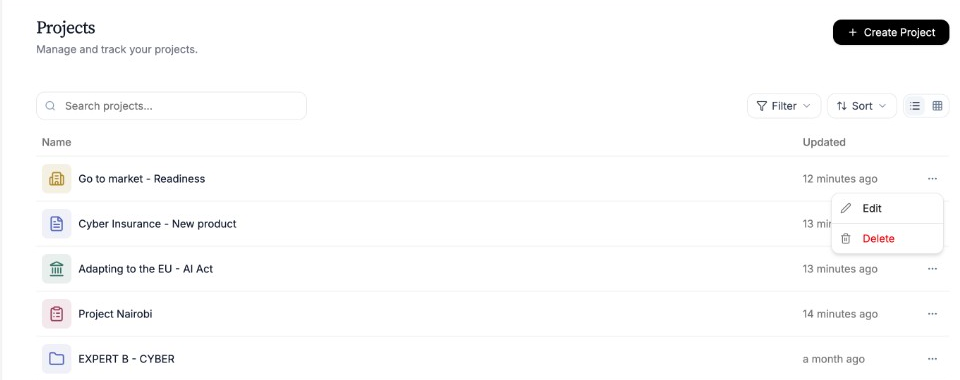
Use the row options menu to edit or delete a Project. Update the details
In Edit Project, change the Name and, if needed, the Status.
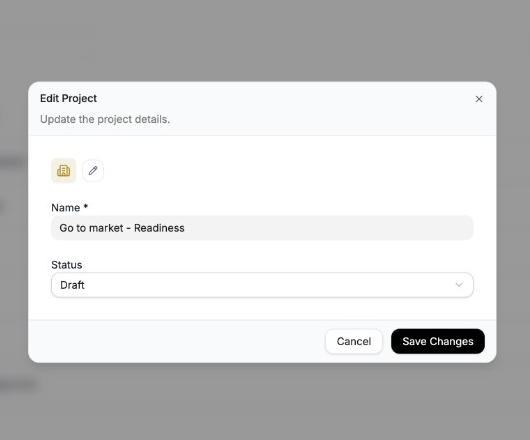
Save Changes updates the Project in your list. Save
Select Save Changes.
Delete a Project
Open Project options
On the Projects list, open the options menu for the Project, then select Delete.
Confirm
Read the Delete Project? warning carefully, then confirm with Delete only if you intend to remove the Project from your active workspace.
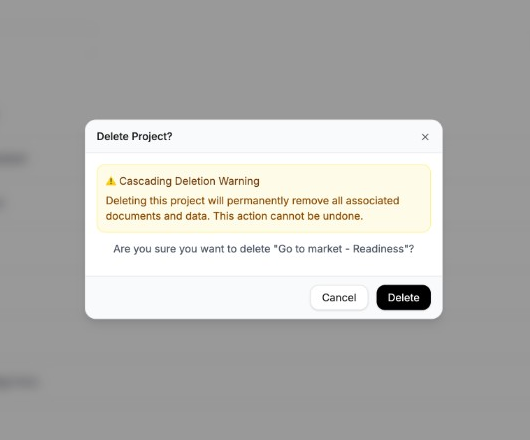
Confirm only when you intend to remove the Project from your active workspace.
Need more help?
If you are stuck, email support@nairobilabs.com.