Import information
Add documents from your Library into an Insight Table review.
Add documents to a review so each document becomes a row in the table.
Add documents
Open a review
Open Insight Table, select a workspace, then open the review you want.
Start adding documents
Select Select Documents if the table is empty, or Add document from the toolbar. You can also drop documents onto the table when that option is available.
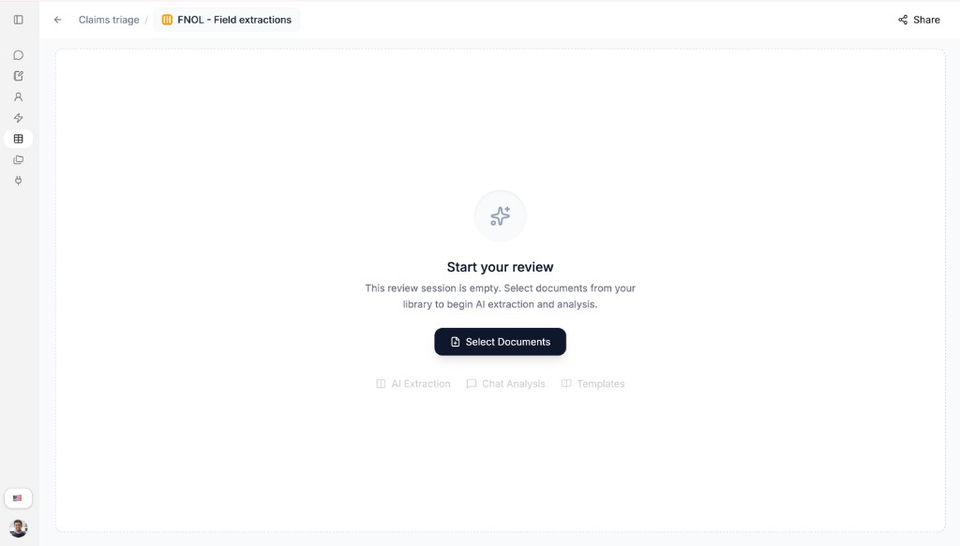
An empty review asks you to select documents before extraction starts. Choose documents from the library panel
In the Add Documents panel, search or browse your library, then select the documents you want. Only documents marked Ready are ready to add.
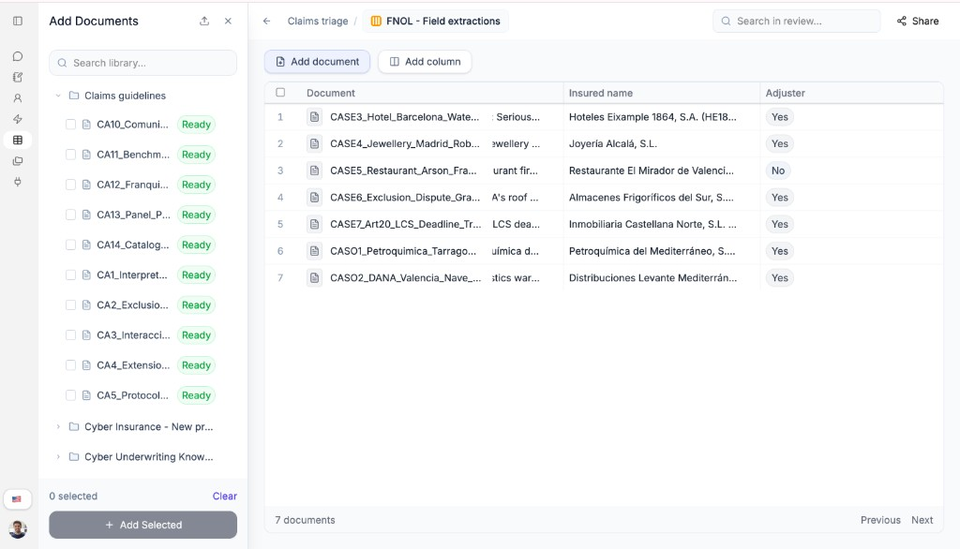
Select Ready documents from your library, then Add Selected. Upload first if needed
If the document is not in your library yet, use the upload control in the panel and choose Upload from computer, then wait until it is processed.
Add the selected documents
Select Add Selected. The documents appear as rows in the table.
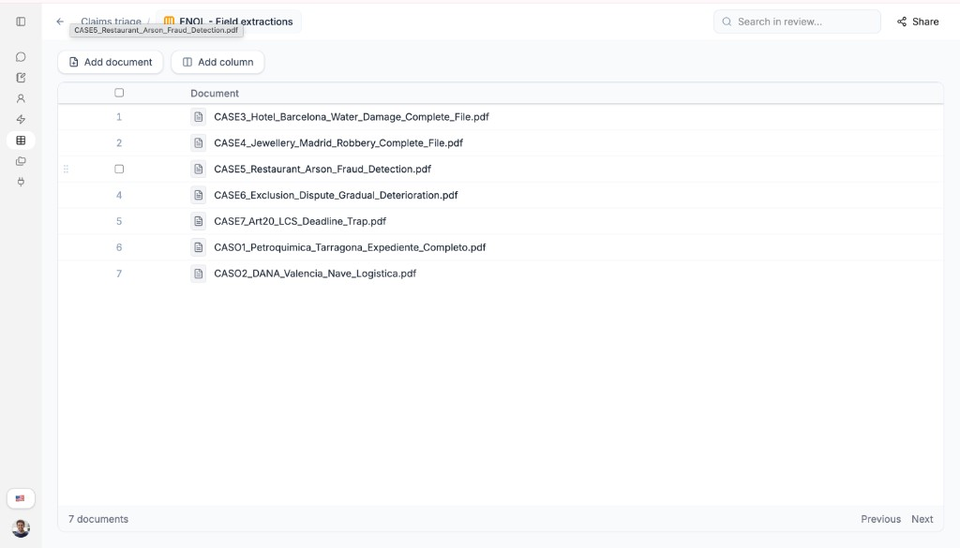
Each added document becomes a row.
Need more help?
If you are stuck, email support@nairobilabs.com.