Use AI-assisted cells
Run or re-run AI extraction for individual cells or whole columns.
Each cell is the AI answer for one document and one column. You can run cells one at a time or for a whole column.
Run cells
Open the table
Open your Insight Table review with documents and AI columns.
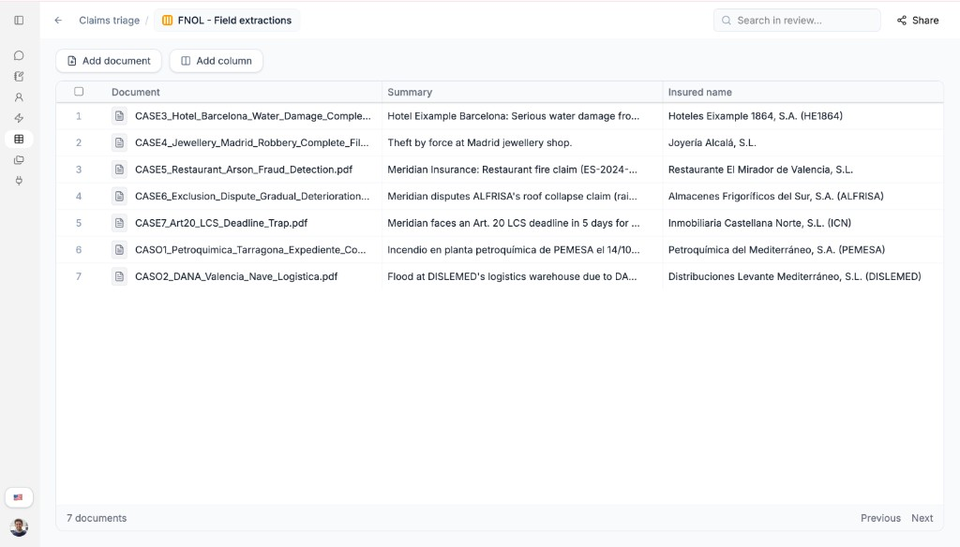
Each cell holds the extracted answer for that document and column. Run a single cell
Select a pending cell and choose Execute when the cell offers that action. On a completed cell, you can re-run extraction when needed.
Run a whole column
Open the column menu and select Execute All or Re-Execute All.
Confirm re-execution when asked
If the cell already has a value, confirm Re-execute Cell?. Re-running can overwrite the current answer.
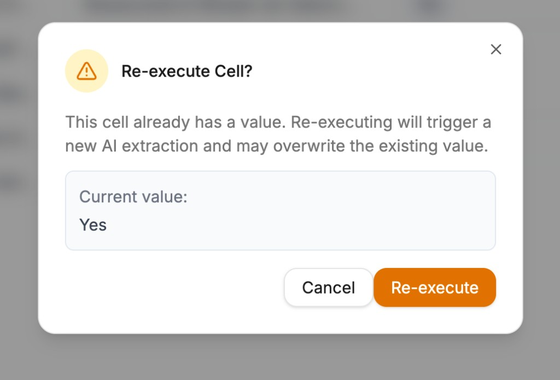
Confirm before you overwrite an existing cell value. Wait for processing
While work is in progress, cells may show states such as Processing… or Extracting…. Wait for results to finish.
Need more help?
If you are stuck, email support@nairobilabs.com.