Upload and work with a document
Attach files or other sources so Assistant can use them in your answers.
Add documents or other sources when you want Assistant to answer from your files, not only from general knowledge.
Add sources and ask
Open Sources
In Assistant, select Sources near the question field.
Choose how to add context
In the Sources menu, choose Upload files, or open Folder to select documents. You can also enable Internet when you need web search. If your organisation has connected tools, you may see import options such as Google Drive.
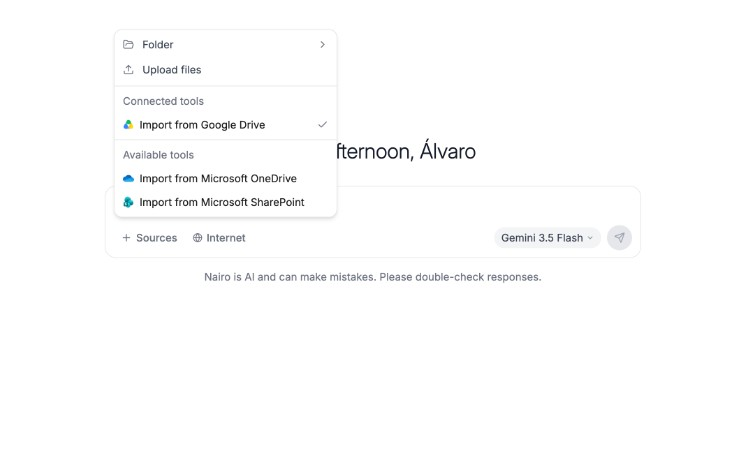
Use Sources to upload files, pick a folder, or import from a connected tool. Confirm your documents are attached
Wait until each file finishes uploading. Attached files appear above the question field.
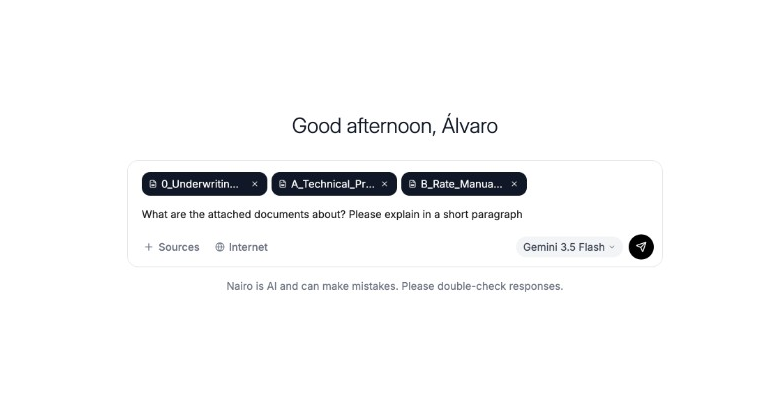
Attached documents stay with your question so Assistant can use them. Ask your question
Type what you want to know about the files and send your message. Supported chat formats include PDF, DOCX, images, XLSX, XLSM, PPTX, and HTML. Keep each file within the chat size limit of 100MB.
Review the reply and sources
Read the response. Assistant may show progress such as reading your documents, then include citation markers you can open to check the source.
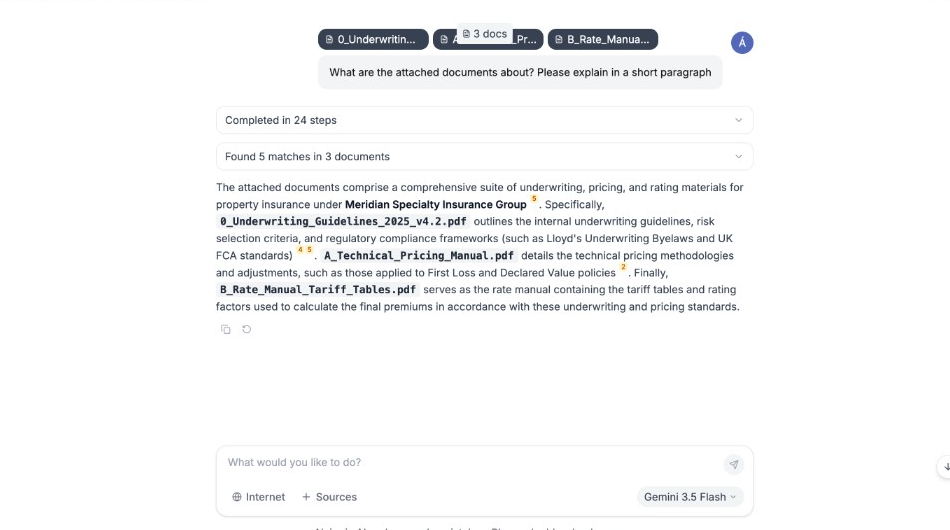
Check the answer and open citations when they appear.
Need more help?
If you are stuck, email support@nairobilabs.com.